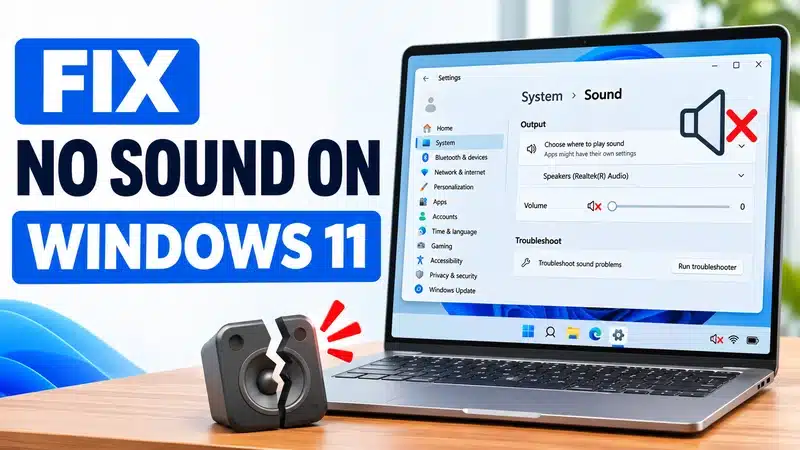
You press play and nothing comes out. The speaker icon may show a mute symbol or a red X, or the sound may have vanished after an update or after you unplugged something. Either way, a silent laptop is frustrating, and it is usually fixable in a few minutes.
This guide covers total silence from laptop speakers, headphones, or an external speaker or monitor. It does not cover microphone problems or crackling and cutting-out audio. Bluetooth pairing and adapter problems have their own guide, which we link to below.
You’ll find nine fixes, ordered from safest and easiest to most drastic. Each one ends with an “Undo:” line so you can always step back.
Before you start
- Change one thing at a time, and test after each fix.
- Note your current output device and volume level before you change anything.
- To test, open Settings > System > Sound, pick your device, and press Test. Or play a short video.
Which fix should you try first?
| Symptom | Try fix(es) |
|---|---|
| Volume looks fine but you hear nothing, or the speaker icon shows mute | 1, 3 |
| Sound only plays through an external monitor, TV, or dock, not the laptop | 2 |
| Sound stopped after plugging in or unplugging headphones | 1, 2 |
| Bluetooth headphones or speaker show “Connected” but are silent | 2 |
| One app is silent (browser, Teams, a game) while others work | 3, 5 |
| Red X on the speaker icon: “No audio output device is installed” | 7, 8 |
| Settings says “No output devices found” | 2, 7, 8 |
| Sound stopped after waking from sleep or hibernation | 1, 6, 8 |
| Sound stopped after a Windows update or driver update | 8, 9 |
| Tried everything and still silent | “Still not fixed?” |
Why you lose sound on Windows 11
Most cases come down to one of a few causes:
- Mute or volume controls, including the keyboard mute key.
- Windows sending sound to the wrong device, such as a monitor with no speakers.
- A per-app setting that silences one program.
- A stuck Windows audio service.
- A damaged or mismatched audio driver, often after an update.
- Rarely, a real hardware fault.
The early fixes cover the common causes, so most people never reach Fix 7.
Fix 1: Check the basics, then restart
Start with the checks that take seconds:
- Click the speaker icon in the taskbar and make sure the volume is up and not muted.
- Check your keyboard for a mute key (often F1, F2, or F10). Press it, or hold Fn and press it, and watch for an on-screen mute indicator.
- If you use external speakers, confirm they’re powered on, the volume knob is up, and the cable is in the correct jack.
- If sound stopped after you used headphones, plug them in and pull them out a few times. Sometimes the laptop wrongly believes headphones are still connected.
- Try a pair of wired headphones. If they work, you’ve learned the laptop can produce sound.
Then choose Start > Power > Restart. Don’t use Shut down. Windows 11’s Fast Startup can keep a faulty audio state alive through a shutdown, and Restart clears it.
Undo: Nothing to undo. Unmute or lower the volume again if you prefer.
Fix 2: Choose the correct output device
Windows may be sending sound somewhere you can’t hear it, such as a monitor, TV, or dock.
- Click the speaker icon, then the small arrow or sound output picker next to the volume slider.
- Choose your laptop speakers or headphones.
- For more detail, open Settings > System > Sound, look under Output, select the right device, and press Test.
The monitor and TV trap: If you connect an HDMI or DisplayPort screen, Windows may switch to it, and many monitors have no speakers. Select your laptop speakers instead.
The USB-C dock trap: Docks can claim the default output even after you leave the desk. Disconnect the dock, test the built-in speakers, then reconnect and reselect the device you want.
If it keeps switching back: Open More sound settings, right-click the device you want, and choose Set as Default.
Bluetooth headphones that say “Connected” but stay silent:
- Make sure they’re the selected output device.
- Disconnect and reconnect them.
- If there’s still no sound, run the Bluetooth troubleshooter from Settings > System > Troubleshoot > Other troubleshooters.
- If they won’t pair, or the Bluetooth adapter is missing entirely, that’s a different problem: see our Bluetooth missing guide.
Undo: Switch the default device back in Settings > System > Sound, using the device you noted earlier.
Fix 3: Check the Volume mixer and per-app sound
Windows controls volume for each app separately, so one app can be silent while everything else works.
- Open Settings > System > Sound > Volume mixer.
- Find the silent app and raise its slider.
- Check that the app’s output device (shown next to the app) is the one you’re listening on.
If sound plays from only one side, or a channel is missing, also look at Settings > Accessibility > Audio > Mono audio. That setting won’t cause total silence, but it can make audio sound odd.
Undo: Set the app’s slider or output device back to its previous value. Return Mono audio to its previous setting if you changed it.
Fix 4: Run the audio troubleshooter (Get Help)
Microsoft’s current route runs through the Get Help app.
- Select Start, search for Get Help, and open it.
- Search for audio troubleshooter.
- Follow the prompts and let it check your devices.
Alternatively, go to Settings > System > Troubleshoot > Other troubleshooters, find Audio, and press Run. Windows may open Get Help to run it. Menu names shift slightly between Windows 11 versions, so search if you don’t see them where described.
Undo: The troubleshooter asks before applying changes. If it altered a setting, reverse it in Settings > System > Sound.
Fix 5: Turn off audio enhancements and exclusive mode
Sound effects and “exclusive control” can silence audio in some apps.
- Open Settings > System > Sound and select your output device.
- Set Audio enhancements to Off, then test.
- For exclusive mode, open More sound settings, double-click your device, and go to the Advanced tab. Untick Allow applications to take exclusive control of this device, then click OK.
Some drivers keep enhancements on the Enhancements tab of the same classic panel. If you don’t see these options, skip this fix. Some drivers don’t show them.
Undo: Switch Audio enhancements back on, and retick the exclusive control box.
Fix 6: Restart the Windows Audio services
If audio stopped after sleep or seems frozen, the audio service may be stuck. Restarting it is safe.
- Press Windows + R, type services.msc, and press Enter.
- Find Windows Audio, right-click it, and choose Restart.
- Then find Windows Audio Endpoint Builder and restart it.
- Confirm both show Running, then test your sound.
Never disable either service. Don’t change the Startup type, and don’t touch Remote Procedure Call (RPC). If a service won’t restart, restart Windows and move on to the next fix.
Undo: There’s nothing to reverse, since a restart doesn’t change settings. Both services should already be running.
Fix 7: Fix a missing or disabled audio device
No audio output device is installed
A red X on the speaker icon, or “No output devices found” in Settings, often means Windows can’t see your audio device or has switched it off.
- Right-click Start and open Device Manager.
- Expand Sound, video and game controllers.
- If your audio device is listed but greyed out, right-click it and choose Enable device.
- If you don’t see it, click View > Show hidden devices, then Action > Scan for hardware changes.
Showing hidden devices doesn’t guarantee a missing device returns. And don’t enable every greyed-out device you see. Only enable your audio device.
Intel laptops: On some models the audio controller sits under System devices as Intel Smart Sound Technology Audio Controller. This depends on the laptop model. The fix is the laptop maker’s driver for your exact model (see Fix 8). Don’t uninstall Smart Sound components or change BIOS settings to fix this.
If the device is still missing, continue to Fix 8.
Undo: Right-click the device in Device Manager and choose Disable device to put it back as it was.
Fix 8: Update, reinstall, or roll back the audio driver
A driver is the software that lets Windows talk to your sound hardware. A bad or mismatched one is a common cause of no sound, especially after updates.
First, get the right driver ready. Before uninstalling anything, download the audio driver from your laptop maker’s support site for your exact model. Then you have a clean copy if Windows doesn’t restore sound on its own.
Update:
- Open Settings > Windows Update > Advanced options > Optional updates and install any audio driver listed.
- Install the maker’s driver from their support site. If updates fail to install, see our Windows 11 update errors guide.
Roll back (if sound broke after a driver update):
- In Device Manager, right-click your audio device and choose Properties.
- On the Driver tab, click Roll Back Driver. If the button is greyed out, no earlier driver is stored. That’s normal and not your mistake.
Uninstall and restart:
- Right-click the audio device and choose Uninstall device.
- Do not tick Attempt to remove the driver for this device the first time.
- Restart. Windows reinstalls the driver automatically.
Never use third-party driver-updater programs. They’re a common source of wrong drivers and malware.
Last resort: Choose Update driver > Browse my computer > Let me pick and select High Definition Audio Device. This can bring sound back, but it can also remove maker features such as Dolby or the microphone array.
Undo: Reinstall the maker’s driver you downloaded earlier, or use Roll Back Driver where available.
Fix 9: Undo a recent update or driver change
If sound died right after a change, undoing it can help.
After a Windows update: Go to Settings > Windows Update > Update history > Uninstall updates and remove that specific recent update. Never remove random updates.
After a driver install or broader system change: Use System Restore. Search for Create a restore point, click System Restore, and choose a point from before the problem started.
Warnings:
- A restore point may not exist. If System Protection was off, skip System Restore and uninstall the update instead.
- Restoring affects apps, drivers, and settings installed recently.
- Back up important files first.
Undo: Reinstall the update from Windows Update, or run System Restore again and choose “Undo system restore” if offered.
Still not fixed?
If you’ve worked through all nine fixes and still hear nothing, narrow down whether the problem is software or hardware.
- Cross-test: Try a USB speaker or headset. If it works, the laptop’s USB side is fine, but that doesn’t prove the speakers are broken. A USB device that stopped working after an update doesn’t prove the laptop’s own audio hardware has failed. Check Windows Update and the maker’s site first.
- Maker diagnostics: Run HP PC Hardware Diagnostics, Dell SupportAssist, or Lenovo Vantage (or its pre-boot diagnostics). These test the speakers outside Windows, so a pass points to software and a fail points to hardware.
- System file check (optional): Open Terminal as administrator and run sfc /scannow. If it reports problems it can’t fix, run DISM /Online /Cleanup-Image /RestoreHealth, then run sfc /scannow again.
- BIOS update: Only if your laptop maker documents a BIOS update that fixes an audio issue. Plug in the charger and follow their exact instructions.
- Reset this PC: The true last resort. Choose Keep my files, but know it removes apps and resets settings. Back up first.
If the maker’s diagnostic fails, or the laptop has had liquid or drop damage, contact the maker or a repair shop.
Frequently asked questions
Why is there suddenly no sound on my Windows 11 laptop?
The usual causes are mute, the wrong output device, an app-level setting, a stuck audio service, or a recent update or driver change. Work through Fixes 1 to 3 first.
How do I fix “No audio output device is installed” on Windows 11?
In Device Manager, enable the disabled audio device and scan for hardware changes (Fix 7). If that fails, update or reinstall the audio driver from your laptop maker (Fix 8).
Why did my sound stop working after a Windows 11 update?
An update can swap in a different audio driver. Try rolling back or reinstalling the driver (Fix 8), then uninstall the update or use System Restore (Fix 9).
How can I tell whether it’s a hardware or software problem?
Test wired headphones and run your maker’s pre-boot diagnostic. If the diagnostic fails, it’s likely hardware. If it passes, the cause is almost certainly software.
Why does sound work in some apps but not others?
The app’s volume or output device may be set wrong in the Volume mixer, or the app may have taken exclusive control of the device. See Fixes 3 and 5.
Is the Windows audio troubleshooter gone?
The old Control Panel-based troubleshooters are being retired. Microsoft’s current route is the Get Help app, which you can reach by searching for it or from Settings (Fix 4).
Is it safe to uninstall or roll back the audio driver? Could I lose sound permanently?
Yes, it’s generally safe. If you don’t tick the option to remove the driver, Windows reinstalls it when you restart. Keep the maker’s driver downloaded as a backup.
Conclusion
Most silent Windows 11 laptops come back to life within the first three fixes: unmuting, choosing the right output device, or fixing one app’s volume. If they don’t, work down the list in order, change one thing at a time, and use the “Undo:” line whenever you want to step back. If the maker’s diagnostic fails, hardware is the likely culprit and a repair is the next step.